Connecting your data
Sundial connectors let you bring your existing databases and data lakes into the platform without moving or copying data. Once a connector is configured, Sundial reads directly from your source, your data stays where it is, and you get full access to it for exploration, modeling, and analysis inside the Data Catalog.
Connectors are read-only by default. Credentials are stored securely and are never exposed after initial setup. If your workflow requires Sundial to write intermediate results back to your warehouse, you can optionally grant limited write permissions — each connector guide below explains how.
Setting up a connector
Adding a new data source takes just a few steps. The exact fields vary by connector type, but the overall flow is the same.
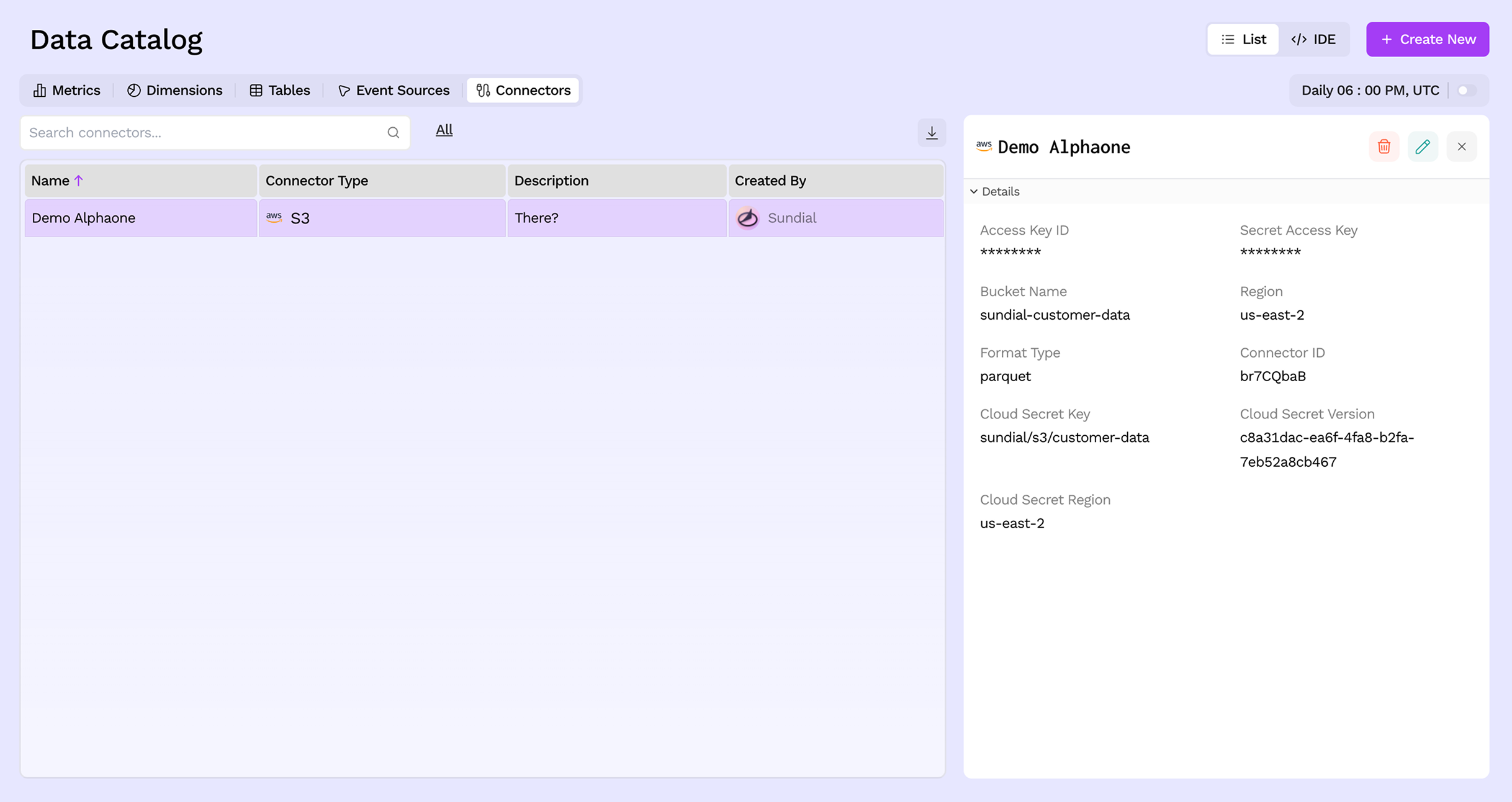
Step 1: Open the Connectors page
Navigate to Data Catalog → Connectors from the left sidebar. This page lists all your existing connections along with their type and who created them. Clicking a connector opens its details panel on the right.
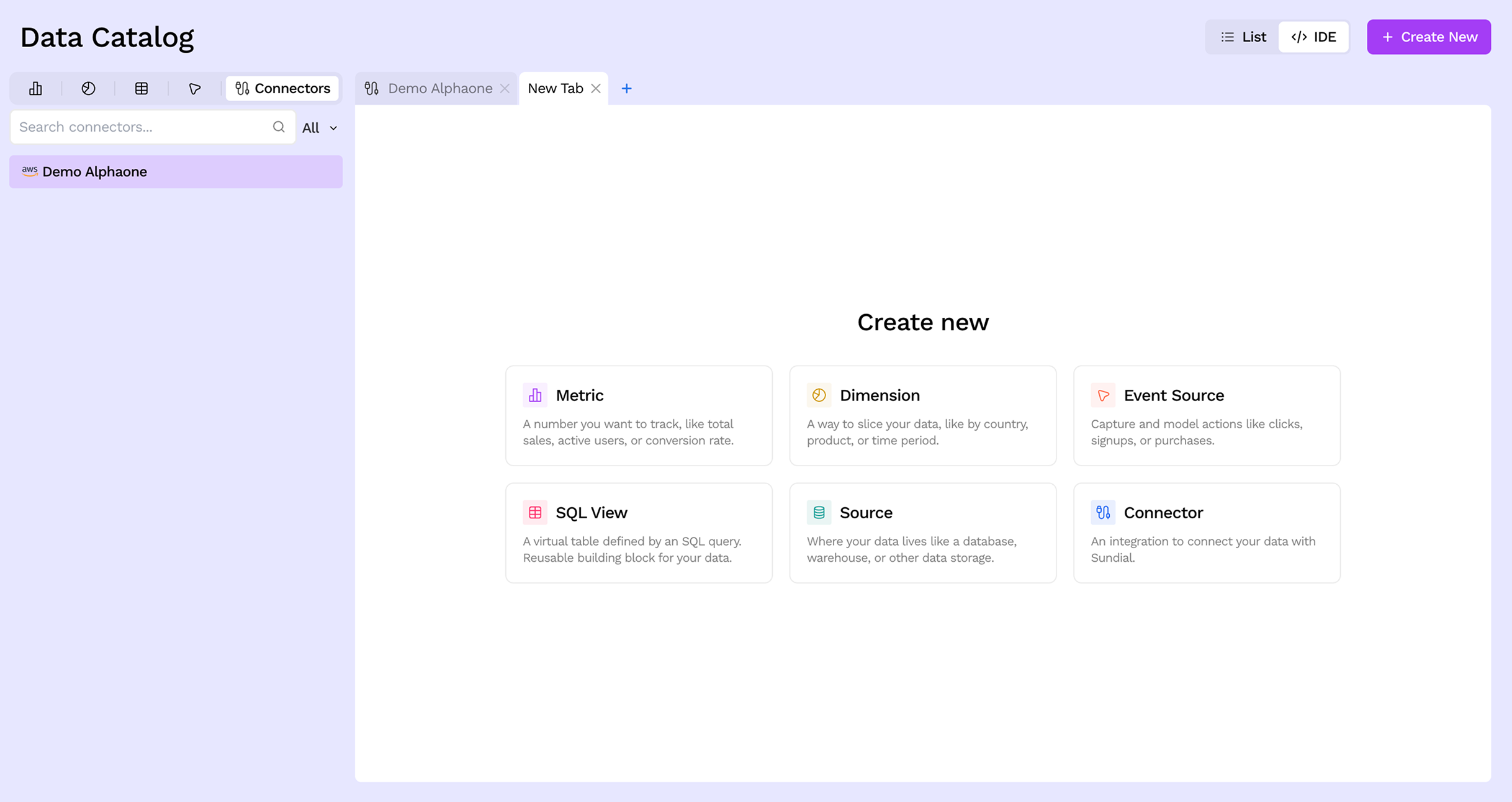
Step 2: Click Create New
Click the + Create New button in the top-right corner. This opens a new tab in the IDE showing all the object types you can add — Metrics, Dimensions, Event Sources, SQL Views, Sources, and Connectors.
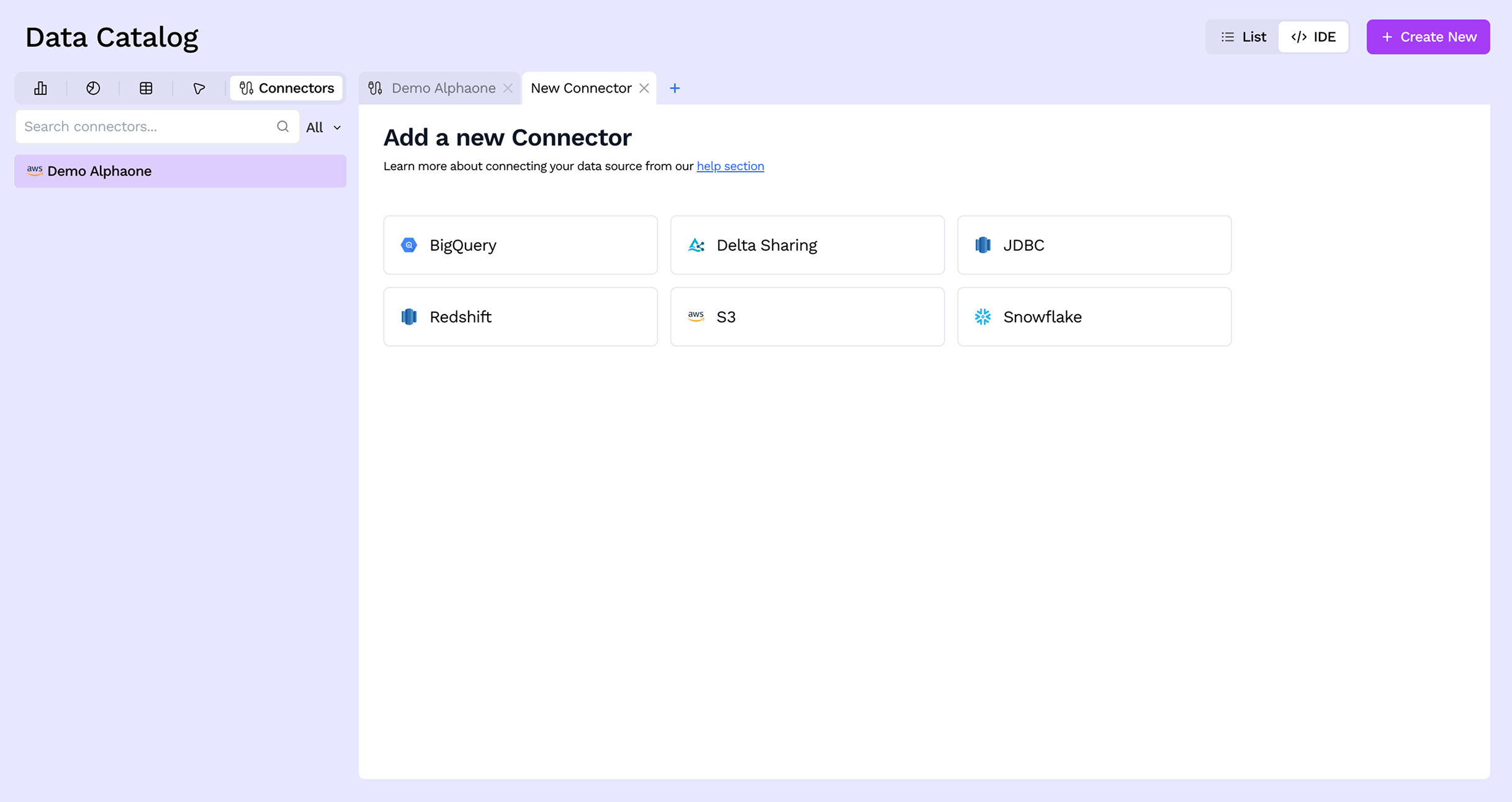
Step 3: Select Connector
Click Connector from the list of object types. A new tab opens showing all the available connector types — BigQuery, Delta Sharing, JDBC, Redshift, S3, and Snowflake.
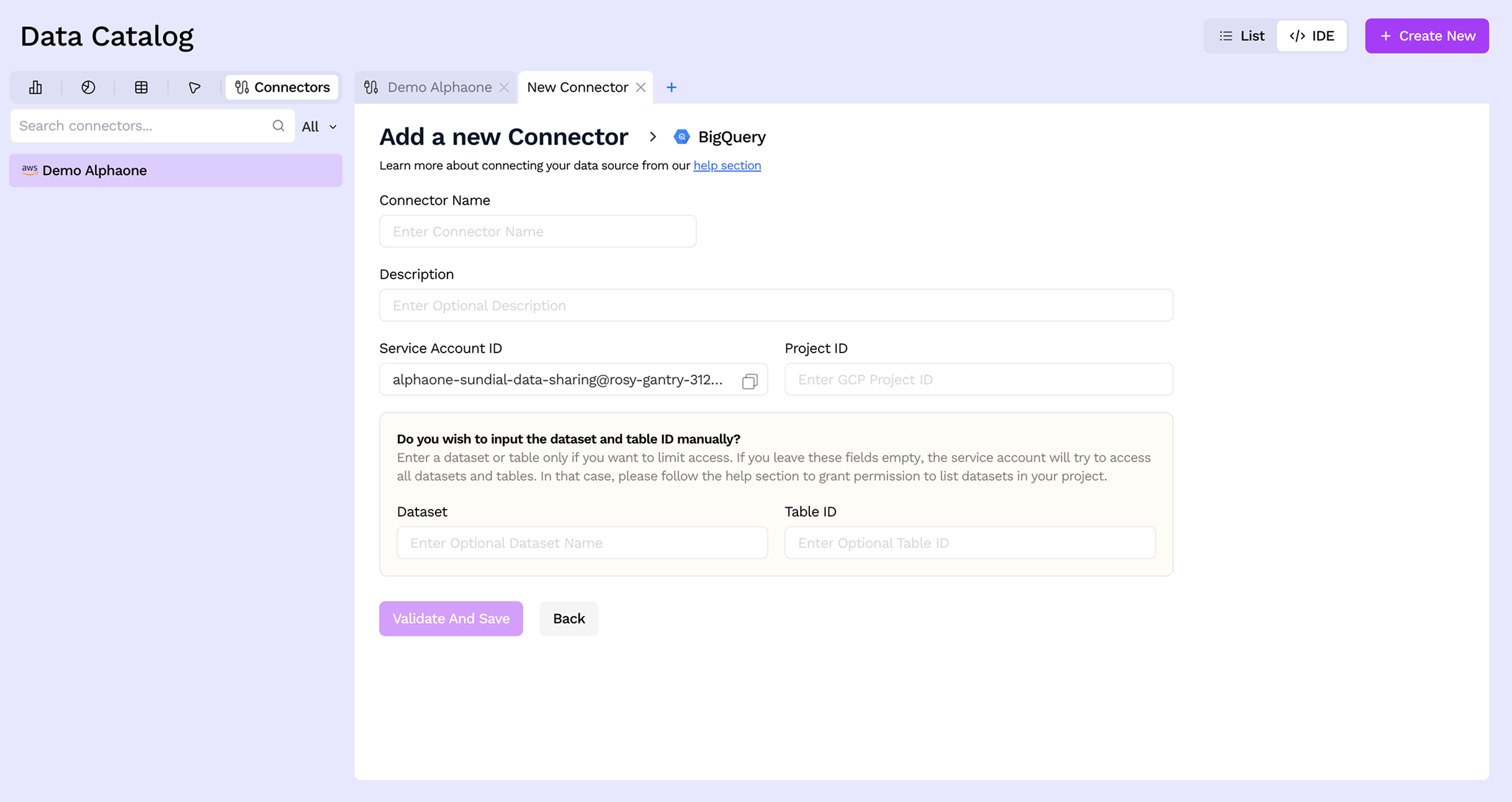
Step 4: Fill in the connection details
Pick your connector and fill in the form. Each type has its own set of fields (name, credentials, project or bucket details, etc.). Refer to the individual connector guides below for the exact prerequisites and values to provide. When ready, click Validate And Save to test and store the connection.
Step 5: Done, your data is connected
Once validated, Sundial syncs metadata from your source. Your tables and schemas will appear in the Data Catalog, ready for querying, transformations, and analysis.
Supported Databases
Click any connector below for setup prerequisites, credential details, and step-by-step configuration instructions.
- Amazon Redshift — Connect to Amazon Redshift data warehouse
- Google BigQuery — Connect to Google BigQuery for large-scale analytics
- Snowflake — Connect to Snowflake data warehouse
- Delta Sharing — Connect to tables on Databricks Delta Sharing
- JDBC — Connect to any JDBC-compliant database
Supported Data Lakes
- Amazon S3 — Connect to Amazon S3 buckets for data storage
- Google Cloud Storage — Connect to Google Cloud Storage buckets