Ping Identity
Set up SAML SSO with Ping Identity (PingOne). See the common values shared across all providers.
Username attribute must be email
Always set the username attribute as EMAIL. This is important — Sundial matches users by email.
Steps
-
Log in to your Ping Identity account.
-
Go to Applications → Applications.
-
Create a new application by clicking the + icon.

-
Name the app
Sundial. -
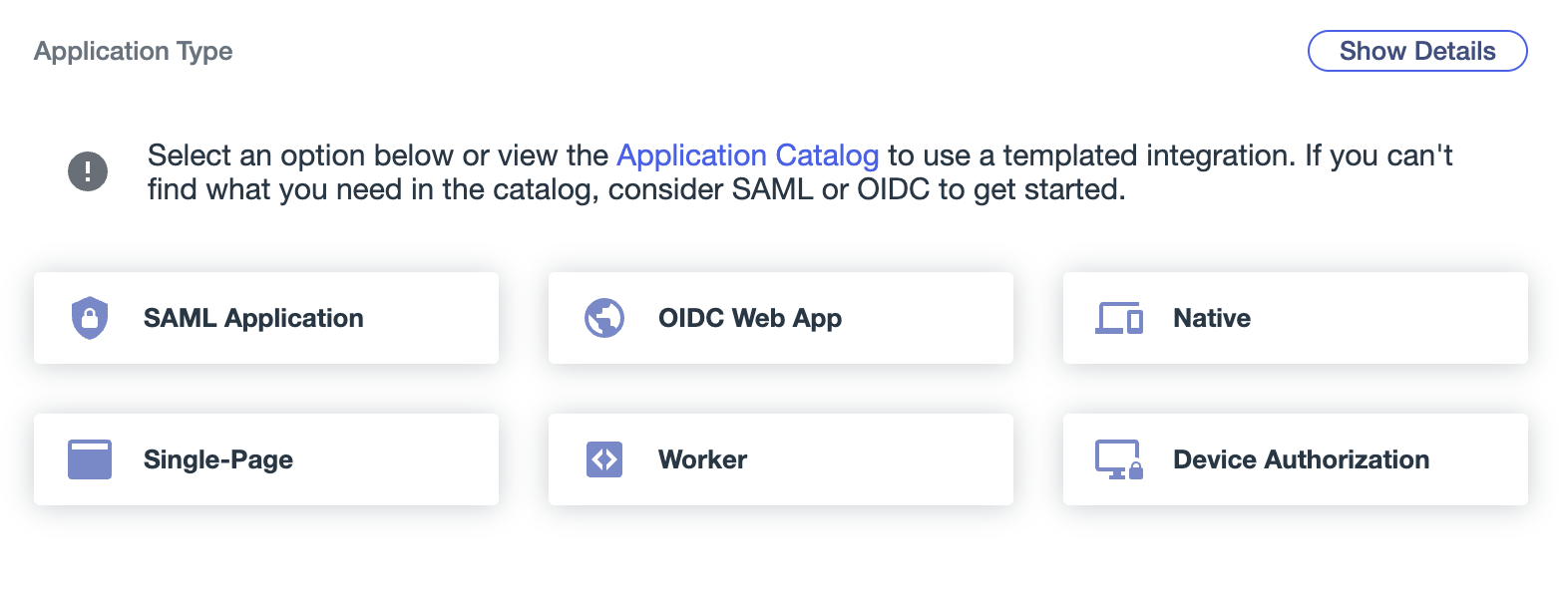
Choose Application Type as SAML Application and save.
-
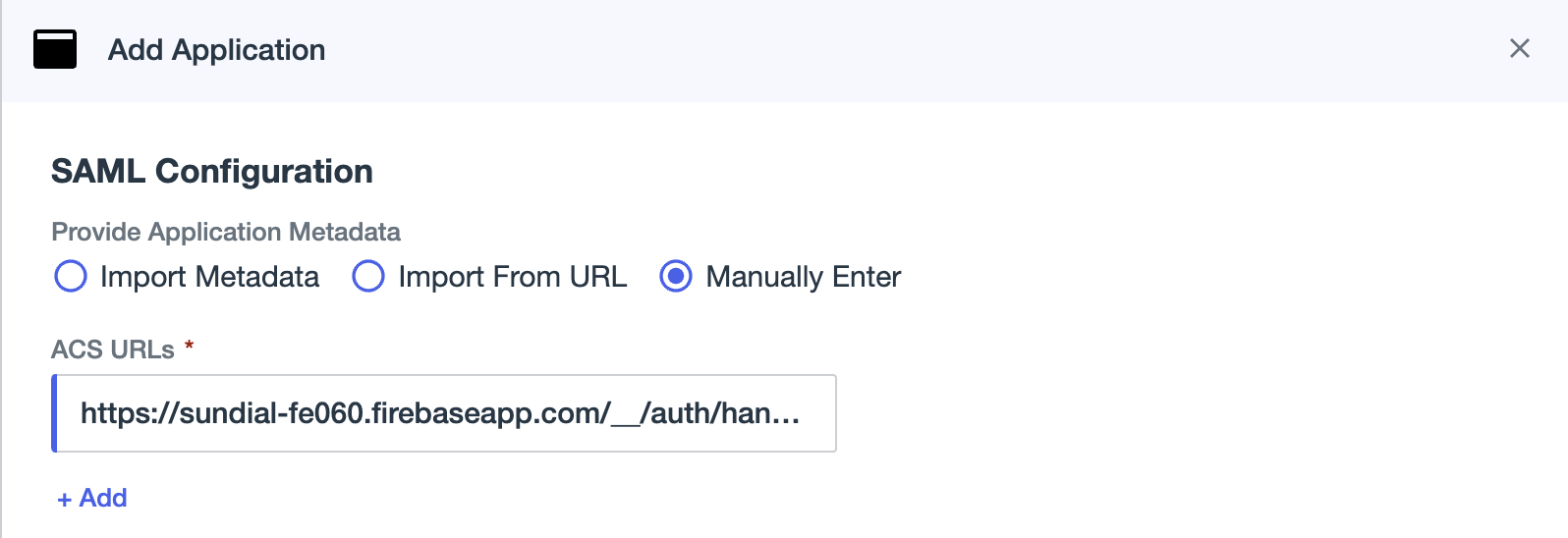
Under SAML Configuration, choose Manually Enter and fill:
- ACS URLs:
https://sundial-fe060.firebaseapp.com/__/auth/handler - Entity ID:
Sundial - (Optional) Application Base URL:
https://app.sundial.so/
- ACS URLs:
-
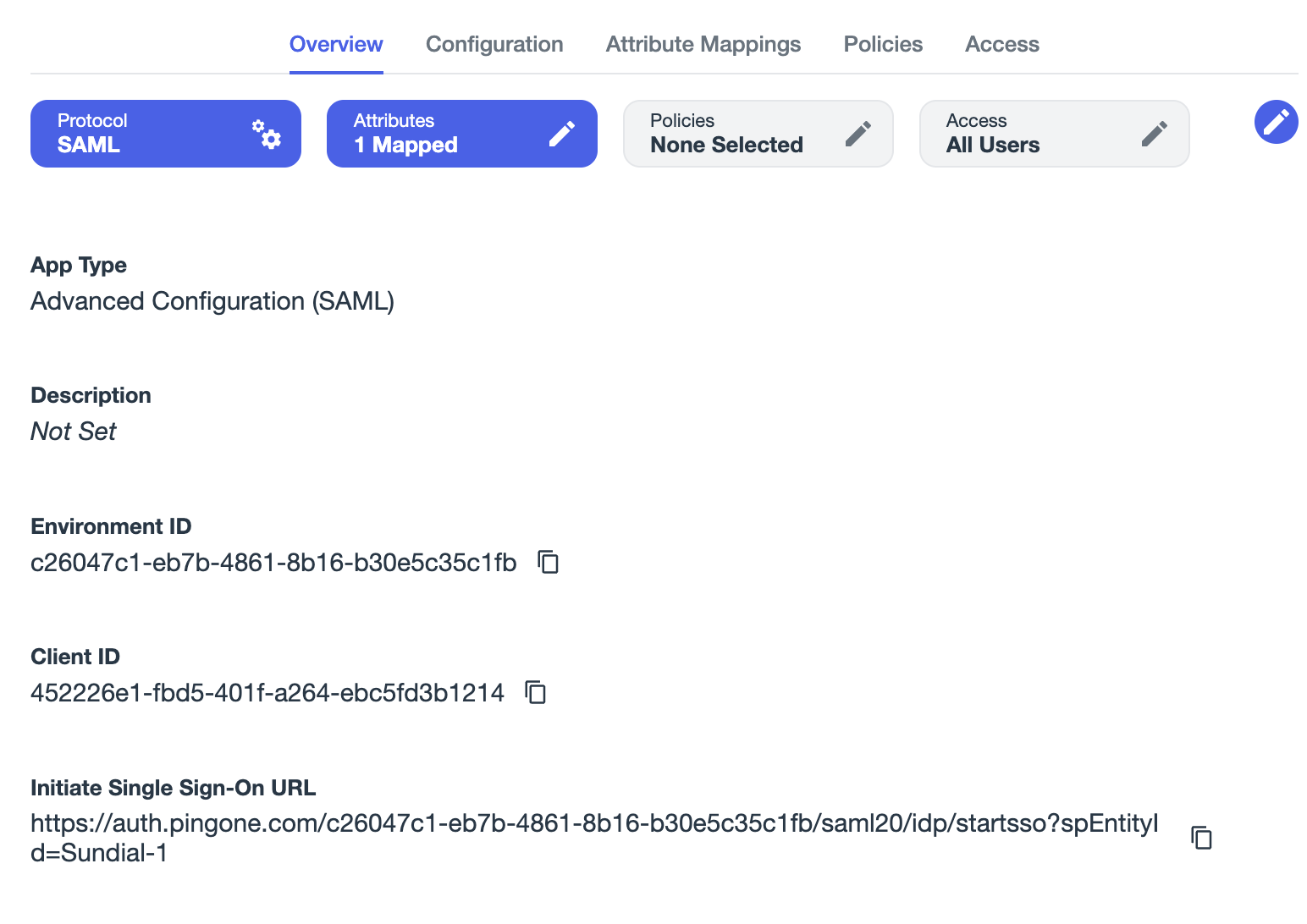
After saving the application, go to the Overview tab and provide Sundial with the Initiate Single Sign-On URL.
-
Under the Configuration tab, Download Metadata and Download Signing Certificate, and provide these to Sundial.
-
On the Attribute Mapping tab, set the attributes as shown below:
Sundial PingOne Required saml_subjectEmail Address Yes displayNameExpression: ${user.name.given + ' ' + user.name.family}Yes emailEmail Address Yes firstNameGiven Name Yes identityProviderIdentity Provider ID — lastNameFamily Name Yes 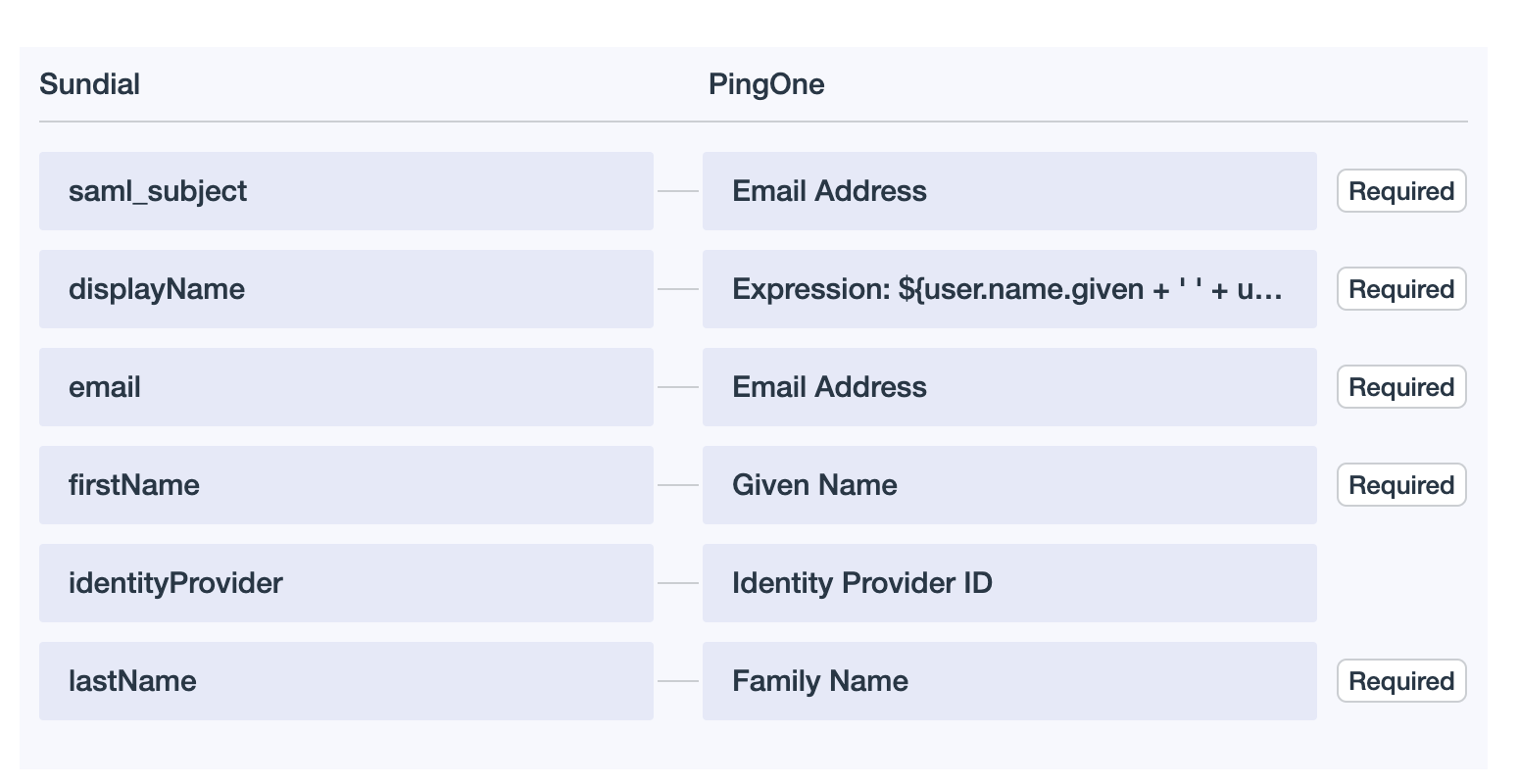
displayNameis configured as a PingOne expression that concatenates the user's given and family names: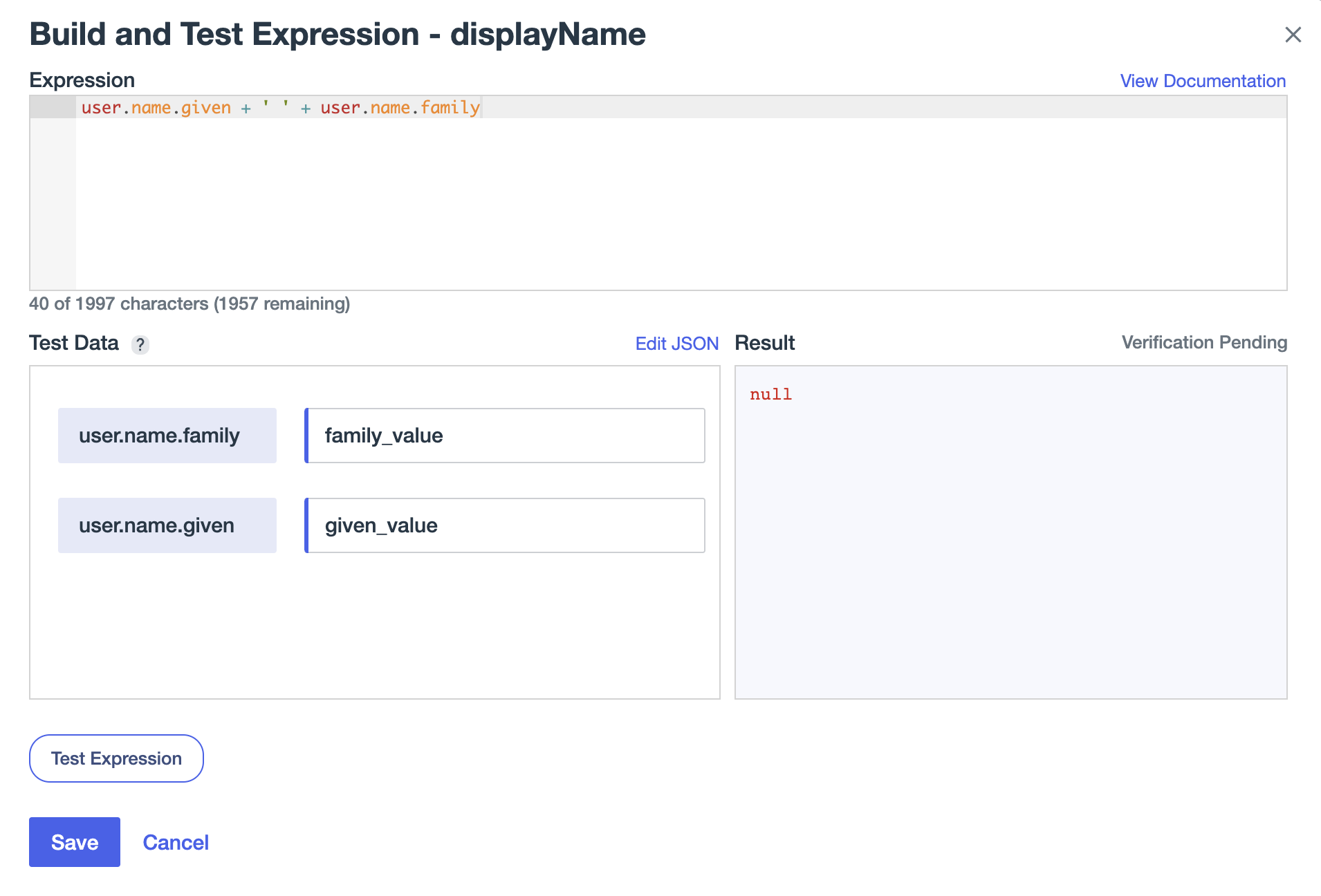
-
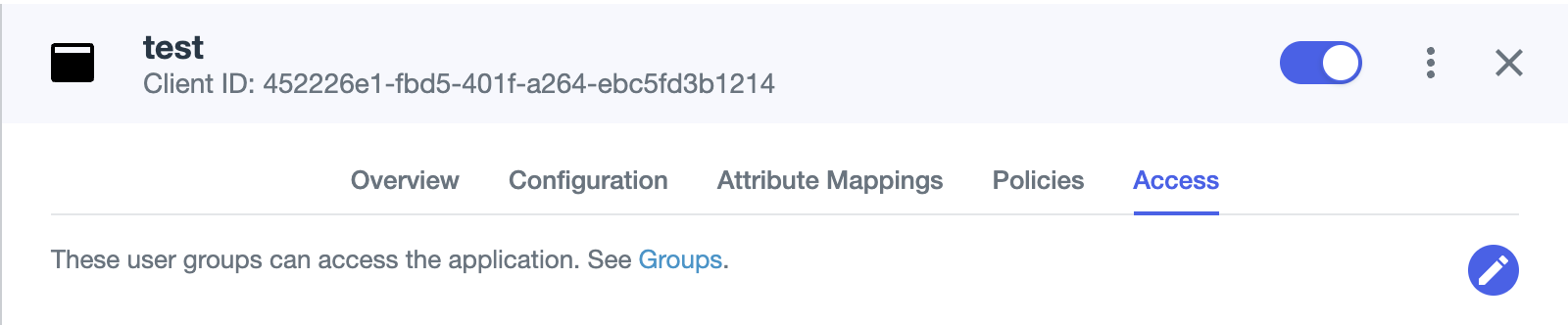
Once everything is done, turn on the Sundial application and you are good to go.