SQL Views
A SQL View is the primary building block for data transformations in Sundial. Each view is defined by a SELECT query that reads from Sources or other views, letting you layer transformations incrementally — cleaning, joining, filtering, and enriching data at each step.
Views allow reuse of your business logic by declaring important transformations in a single place, which can then be referenced in many subsequent views. Because views reference each other by name, changes propagate automatically:
- If you change how
active_usersis defined, all downstream views using it will automatically get the updated definition. - When you update revenue calculation logic in
daily_revenue, reports and dashboards using that view will show the new numbers. - If you modify user segmentation rules in a base view, all dependent views will inherit the new segments.
What a SQL View contains
Each SQL View has:
- SQL query — The SELECT statement that defines the transformation, querying data from other views or Sources.
- Schema — The expected column names and data types, inferred automatically from the SQL query.
- Materialization configuration — Optional. If set, defines how the view will be pre-computed and stored. See Materialization.
- Table tests — Optional data quality tests that validate the output whenever the view is refreshed. See Pipeline Operations.
Creating a SQL View
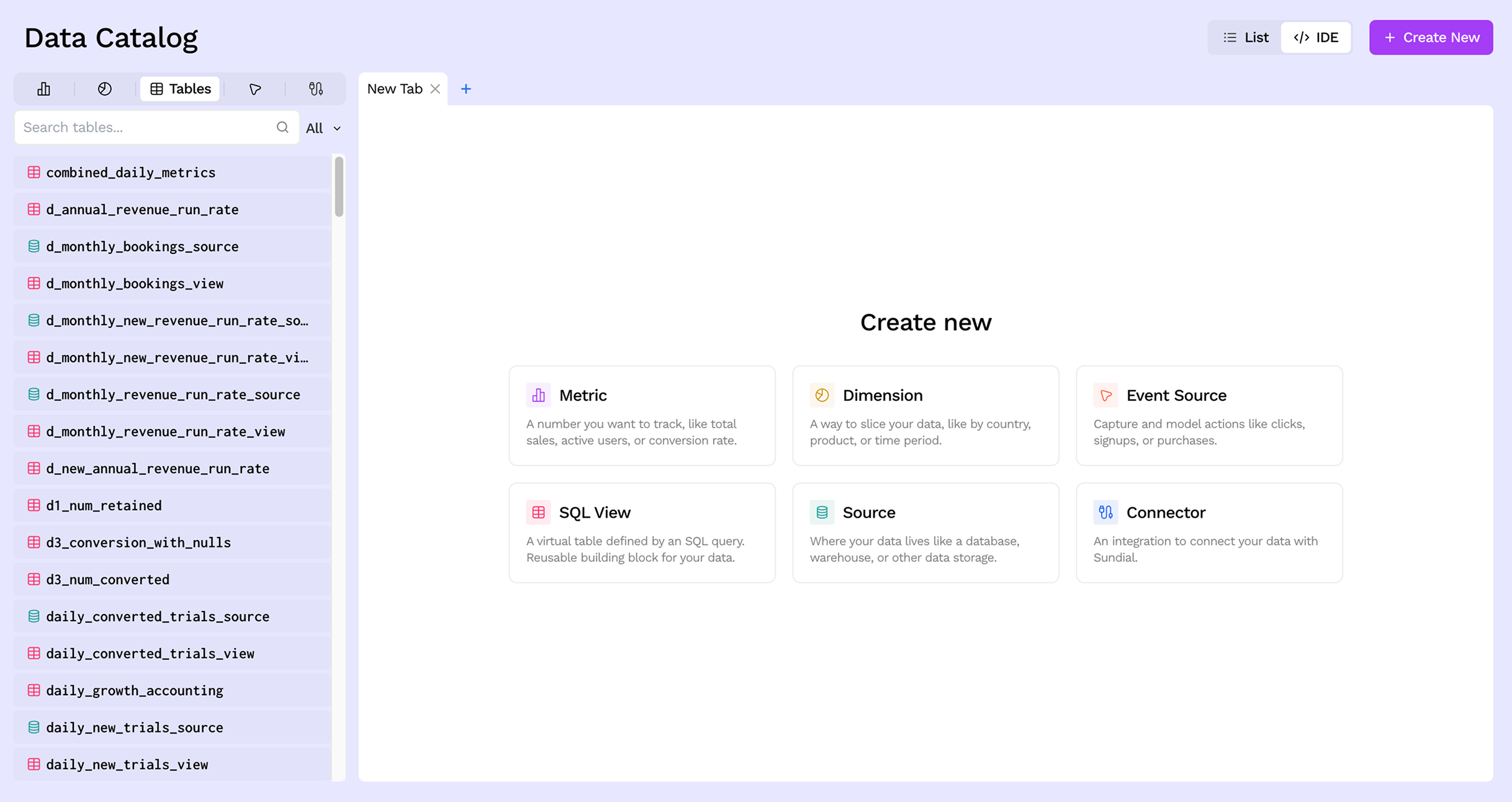
Step 1: Open the Create New menu
From the Data Catalog, click the + Create New button in the top-right corner. In the menu that opens, select SQL View.
Step 2: Name and describe the view
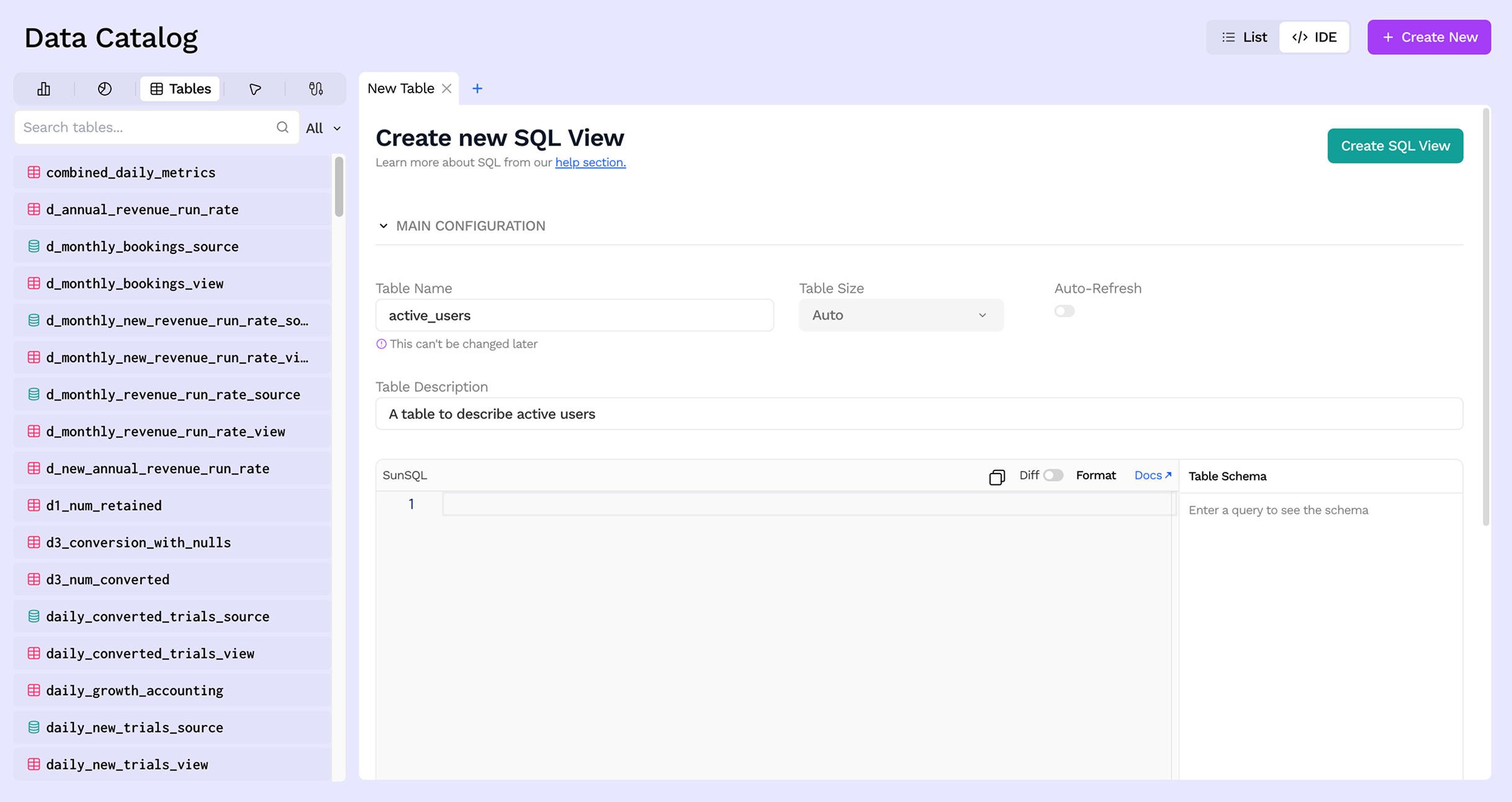
Give your view a meaningful name that reflects what the data represents, not how it is computed. For example, prefer active_users over join_users_and_sessions. Names can only contain alphanumeric characters and underscores, and cannot start with a number.
Optionally add a description to document the business context.
Step 3: Write the SQL query
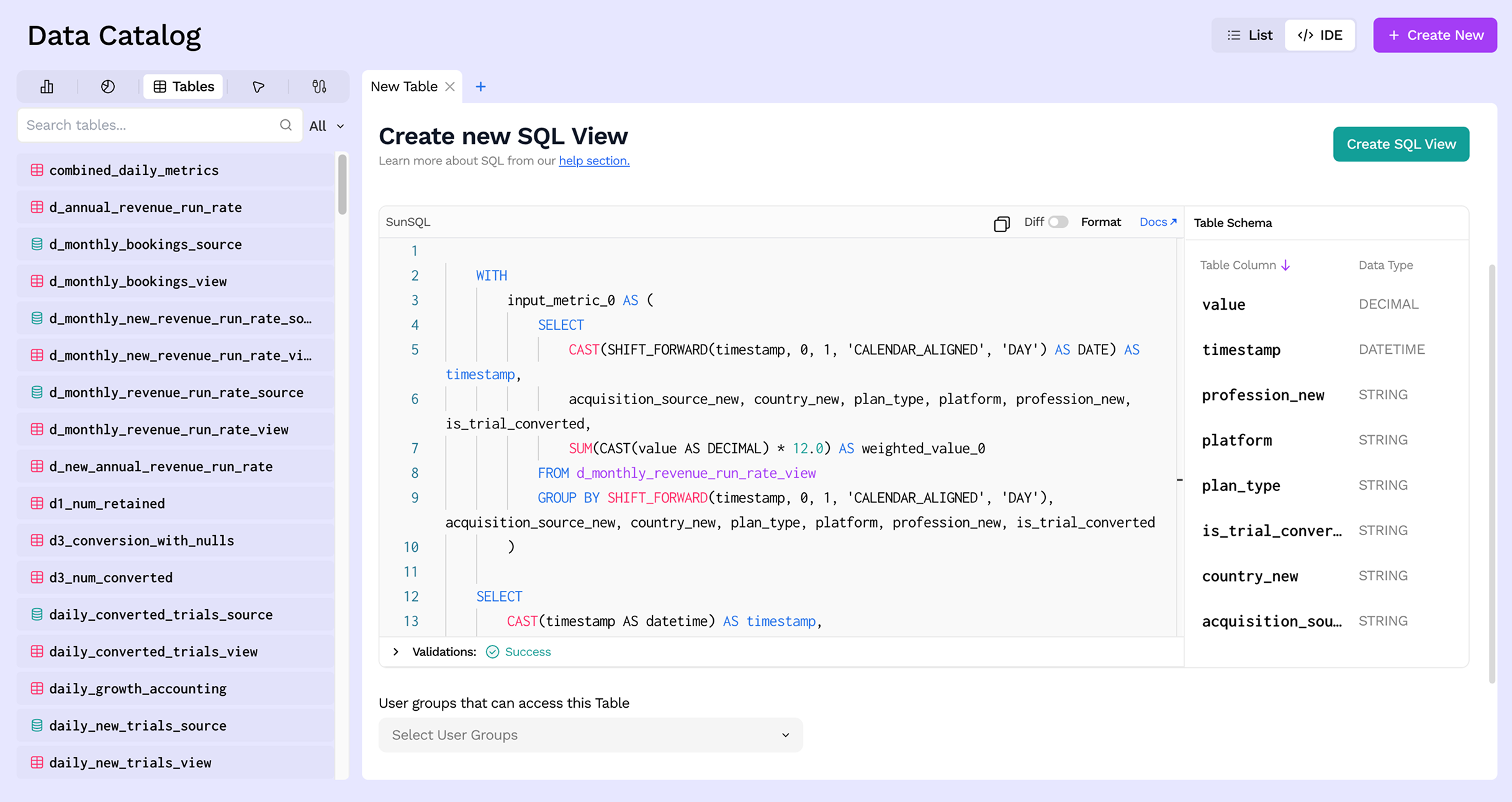
Use the SunSQL editor to write the SELECT query that defines the view. You can reference any Source or other SQL View by name. The editor provides autocomplete for table and column names.
Sundial also generates a read-only Spark SQL preview so you can see the compiled query that will run against the underlying engine.
SELECT
  user_id,
  DATE(event_timestamp) AS activity_date,
  COUNT(*) AS event_count
FROM user_events
WHERE event_type = 'page_view'
GROUP BY user_id, DATE(event_timestamp)
For the full SQL syntax reference, see SELECT Queries, Functions, and Templated Variables.
Step 4: Review the inferred schema
The Table Schema panel on the right automatically infers column names and data types from your SQL query. Review this to make sure it matches your expectations.
Step 5: Configure materialization (optional)
By default, a SQL View is computed on-demand at query time (like a standard database view). If you want to pre-compute and store the results for faster downstream access, enable materialization. See Materialization for the full guide.
Step 6: Save
Click Save to create the view. It will appear in the Data Catalog and can immediately be referenced by other views, metrics, or analysis queries.
Next steps
- Materialize your views for automated refreshes
- Add data quality tests to validate transformation output
- Trace dependencies using visual lineage