Microsoft Entra
Set up SAML SSO with Microsoft Entra (formerly Azure AD). See the common values shared across all providers.
Steps
-
Go to the Microsoft Entra admin center.
-
Click + New Application.
-
Click + Create your own Application.
-
Select Integrate any other application you don't find in the gallery (Non-gallery).
-
In the application window, go to Single sign-on and select SAML.
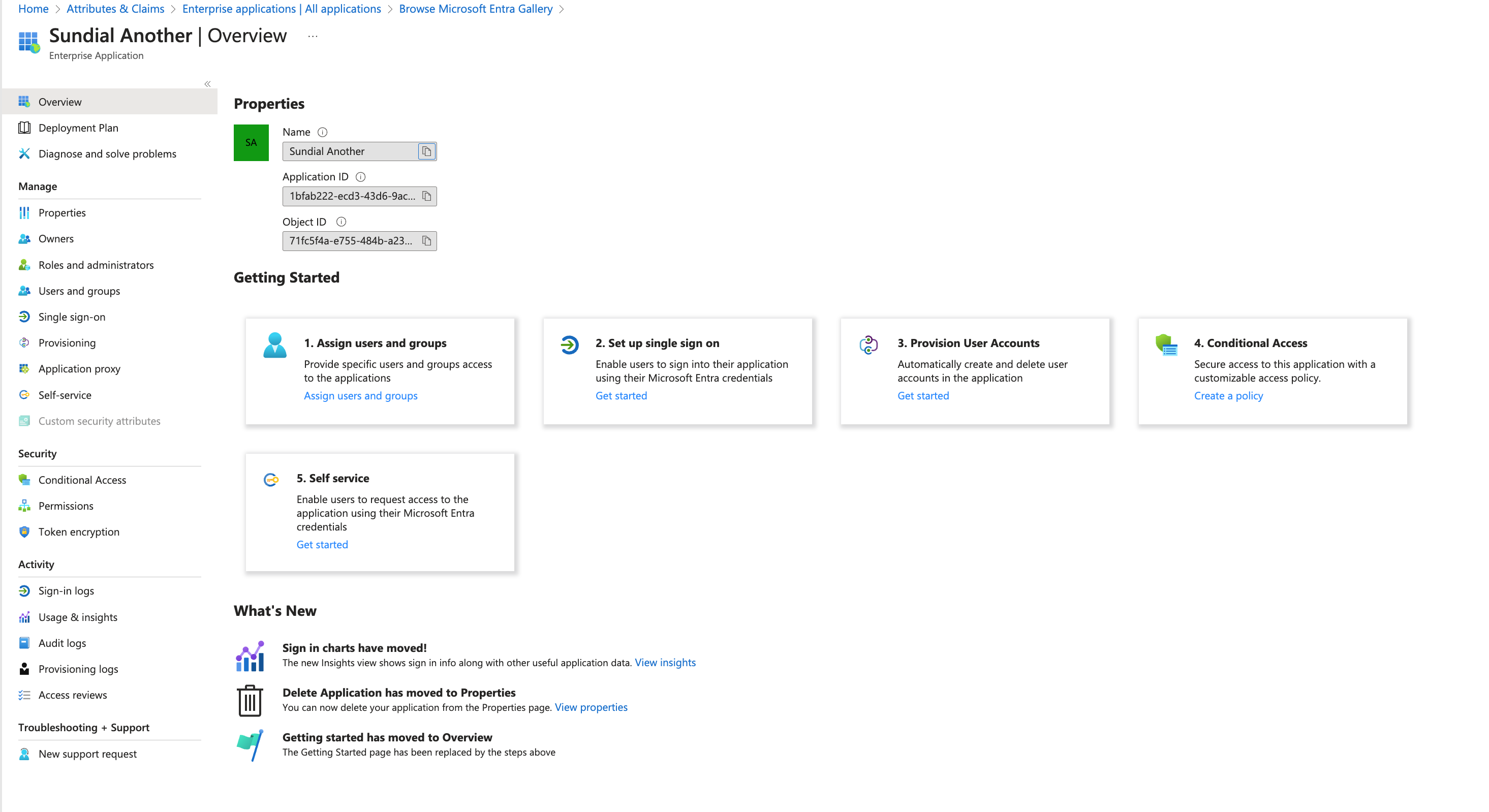
-
Fill the basic SAML configuration as shown:
- Identifier (Entity ID):
Sundial - Reply URL (ACS URL):
https://sundial-fe060.firebaseapp.com/__/auth/handler
- Identifier (Entity ID):
-
Configure Attributes & Claims — add these two claims exactly as shown:
Claim name Value / Source emailthe user's email address displayNameTransformation → Trim(user.displayname)The
emailclaim: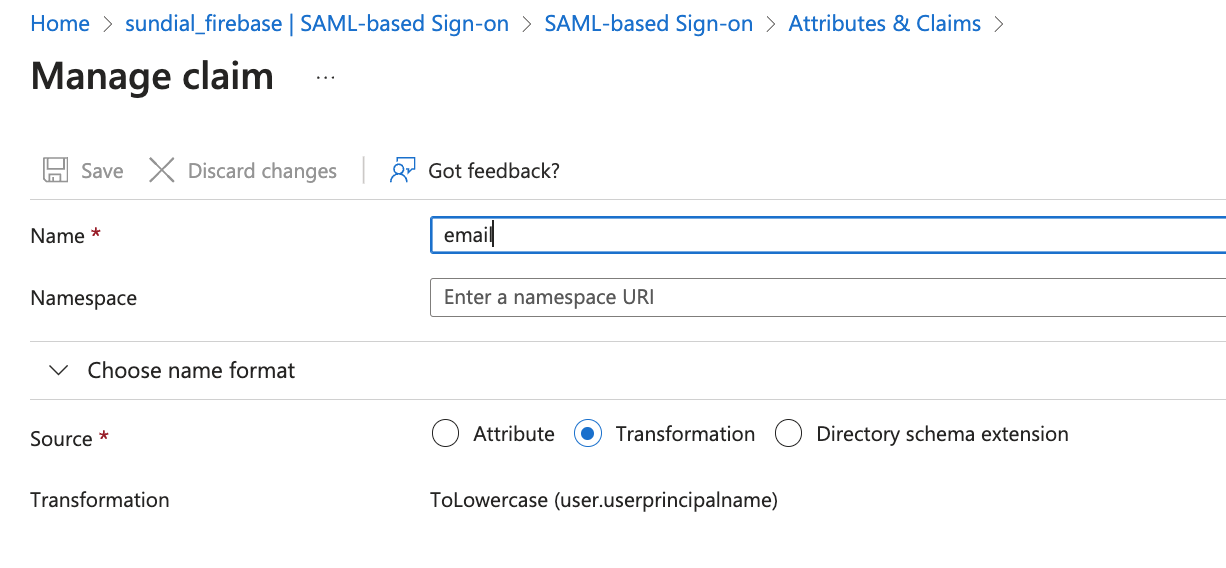
The
displayNameclaim (set via a Transformation that trimsuser.displayname):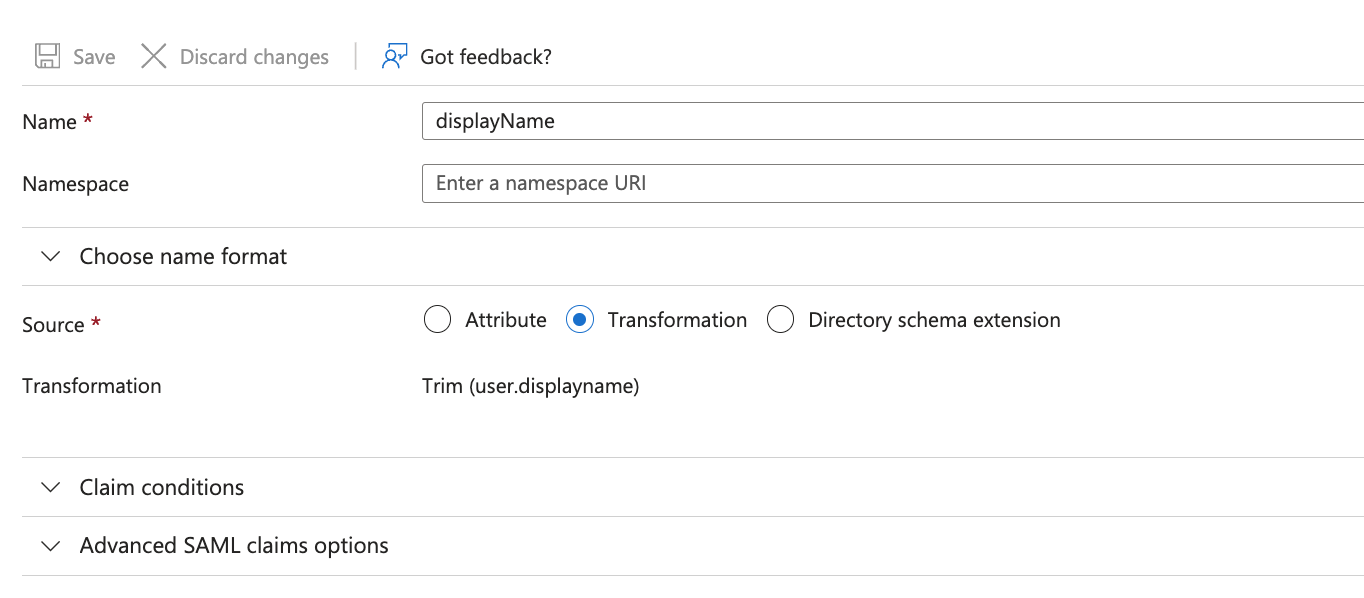
-
Get Sundial access to the following from the single sign-on window, and share them with the Sundial team:
- Certificate (Base64) — download and share with the Sundial team
- Login URL
- Microsoft Entra Identifier
Make sure the user identifier resolves to the user's primary email — Sundial matches users by email.