Google SSO
Set up SAML SSO with Google Workspace. See the common values shared across all providers.
Steps
-
Create a SAML app in your Google Workspace admin console. See Google's custom SAML app documentation.
-
Add a name for your SAML app (e.g.,
Sundial).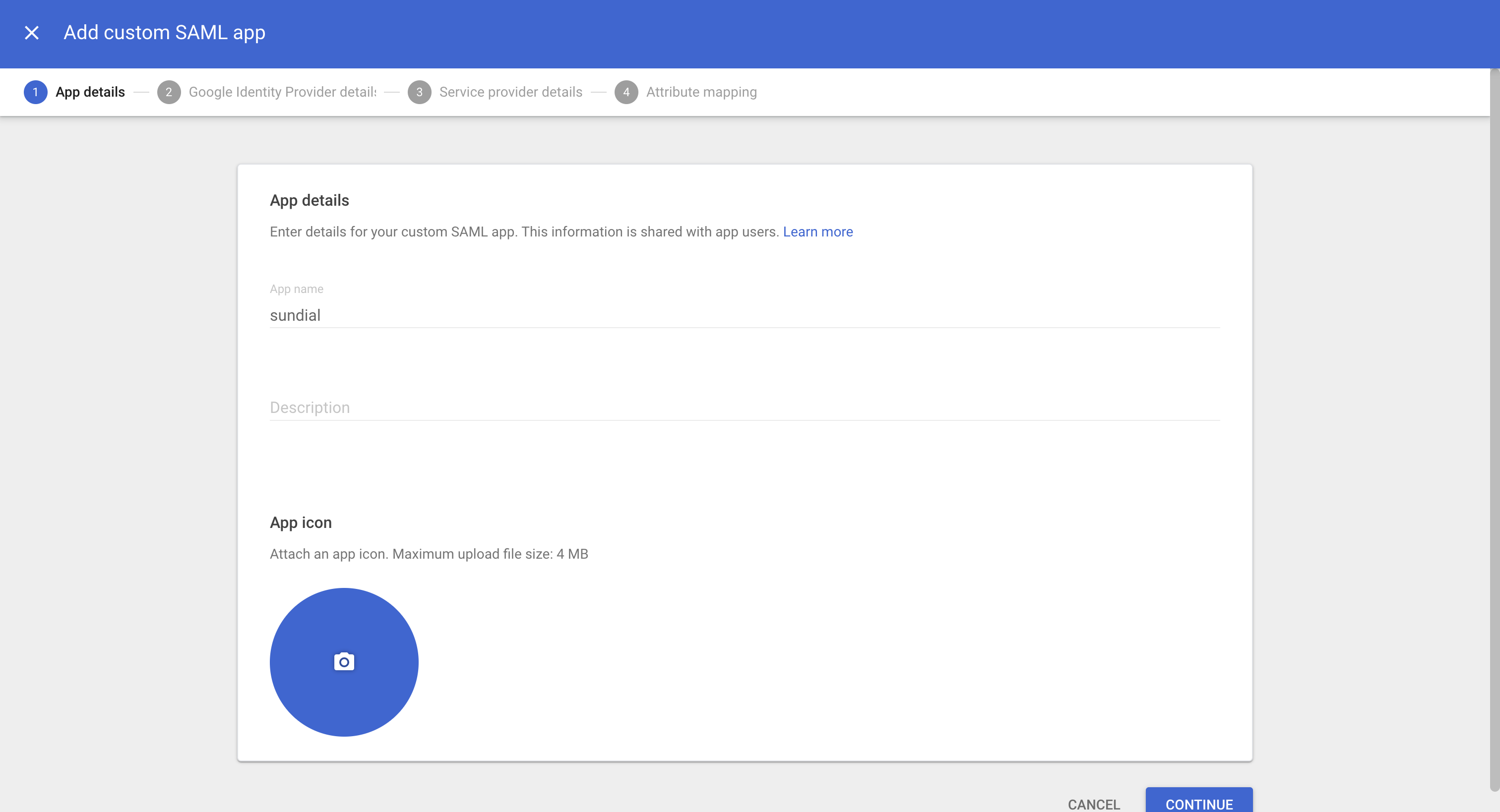
-
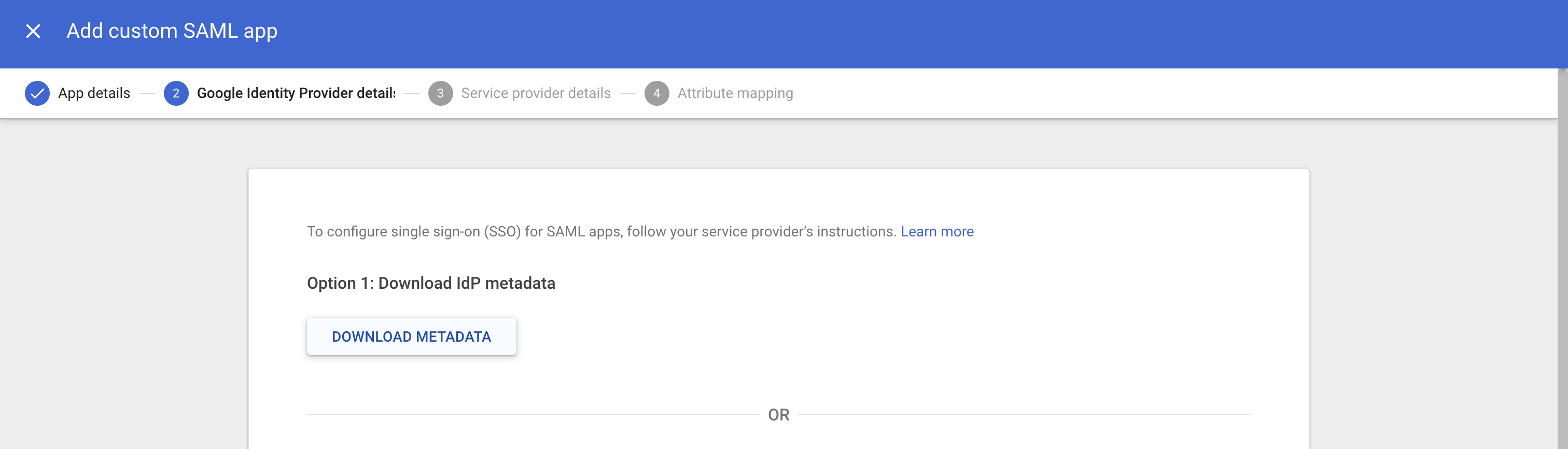
On the next page, download the IdP metadata file and share it with Sundial.
-
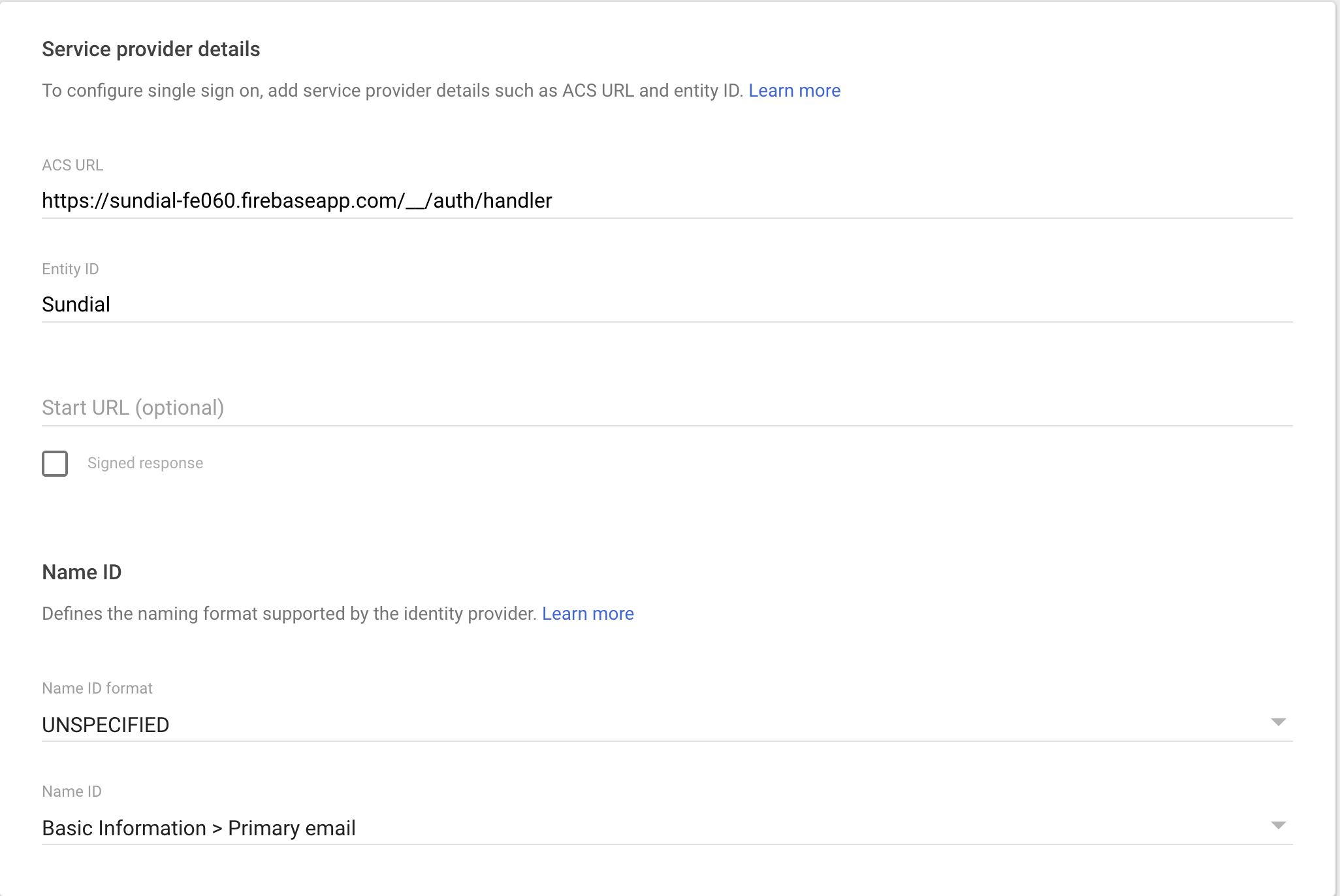
Move to the Service provider details tab and fill in the following:
- ACS URL:
https://sundial-fe060.firebaseapp.com/__/auth/handler - Entity ID:
Sundial - Name ID format: Unspecified
- Name ID: Basic Information → Primary email (important)
- ACS URL:
-
On the next page, fill in the attribute mappings as shown below:
Google Directory attribute App attribute Basic Information → First name firstNameBasic Information → Last name lastNameBasic Information → Primary email email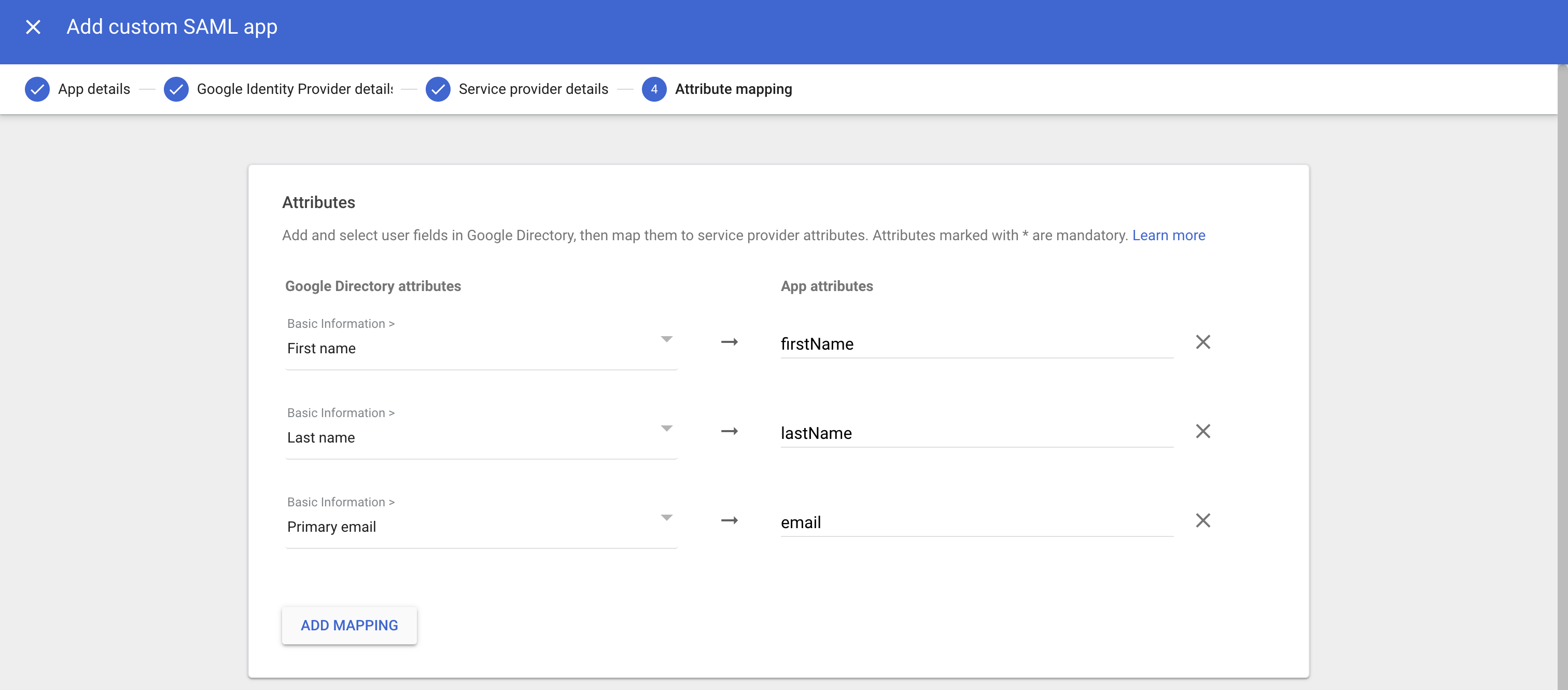
-
Save, and you are good to go.
Still have questions?
Write to support@sundial.so