Okta
Set up SAML SSO with Okta. See the common values shared across all providers.
Application username format
When prompted, choose the application username format as EMAIL. This is important — Sundial matches users by email.
Steps
-
Go to https://developer.okta.com/.
-
Go to Applications → Applications.
-
Click Create App Integration.
-
Choose SAML 2.0 and click Next.

-
Set the App name to
Sundialand click Next.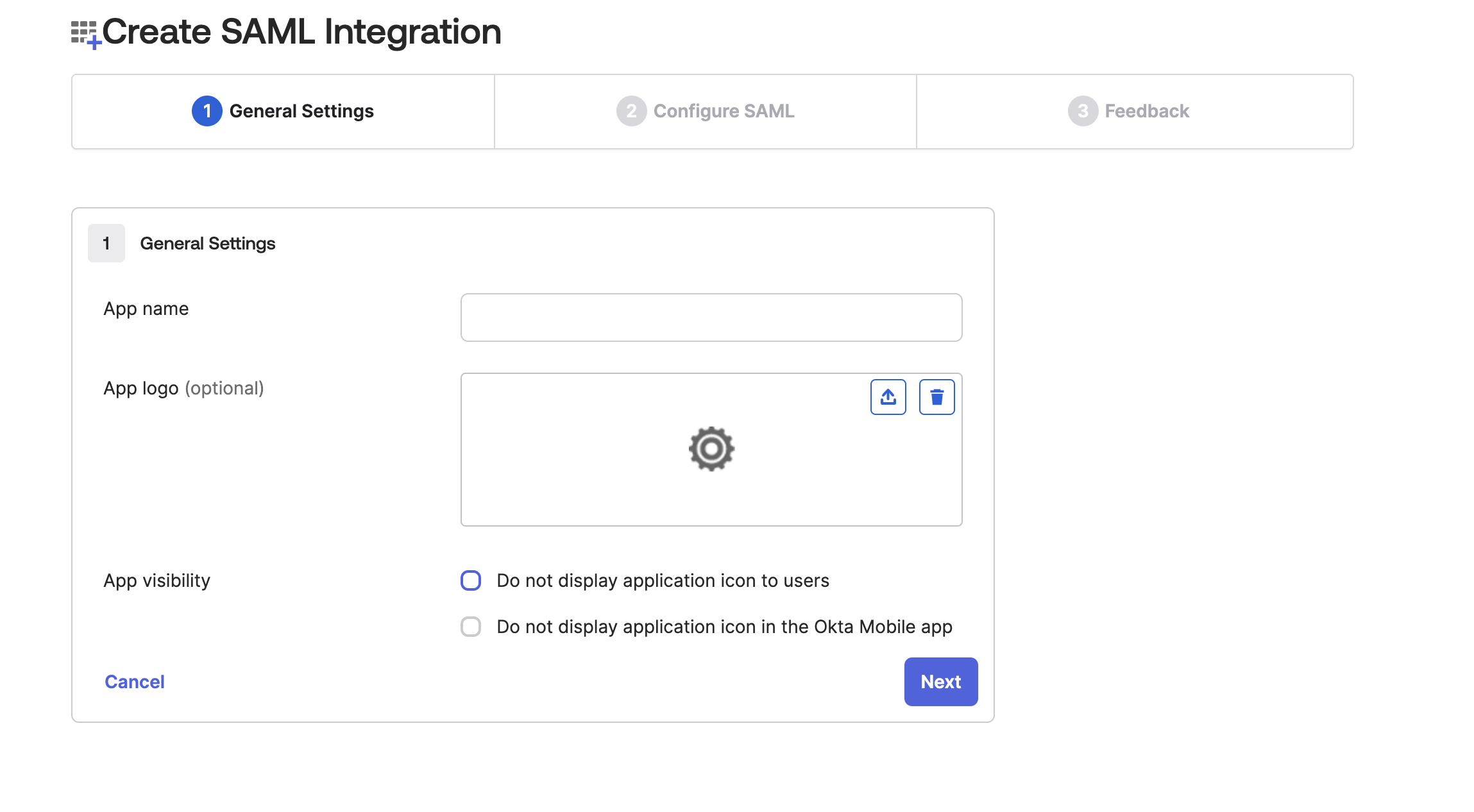
-
In Single sign-on URL enter:
https://sundial-fe060.firebaseapp.com/__/auth/handler- (Optional) Set Application Base URL to
https://app.sundial.so/.
- (Optional) Set Application Base URL to
-
Enter Audience URI (SP Entity ID) as:
Sundial -
Set Application username to: Okta Username
-
Set Name ID format to: Unspecified
-
Fill the Attribute Statements exactly as below:
Name Name format Value emailUnspecified user.emailfirstNameUnspecified user.firstNamelastNameUnspecified user.lastNamedisplayNameUnspecified user.firstName + " " + user.lastName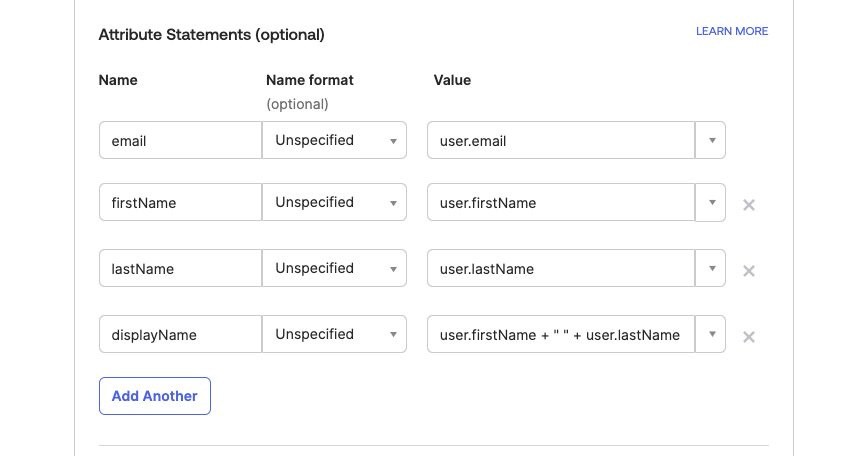
-
Finish the integration.
Values to send back to Sundial
Once the app is created, collect the values Sundial needs:
- Go to Applications again and open the Sundial app.
- On the General tab, copy the Embed Link at the end of the section. This is the SSO URL used to wire up login on Sundial's side.
- On the Sign On tab, scroll down to SAML Signing Certificates. From the Actions menu of the ACTIVE certificate, provide Sundial with the IdP metadata (it contains the entity ID and certificate required for the integration).
Still have questions?
Write to support@sundial.so